
Pairing your phone with your car's stereo is one of those tasks that looks effortless in advertisements but can quickly turn frustrating in real life. Maybe your phone shows "connected" while the audio still plays from the tiny phone speaker. Or worse, your car's screen keeps asking for a PIN you never set.
The good news: connecting Bluetooth to a car stereo follows a consistent set of rules, regardless of whether you drive a brand-new SUV or a 15-year-old sedan. Once you understand those rules, the process takes under two minutes and works reliably every time. You can also read our guide on best equalizer setting for car stereo.
This guide walks you through every scenario—built-in systems, adapters for older cars, complete stereo replacements—plus fixes for the most common connection failures.
Before You Start: A 30-Second Pre-Check
Most Bluetooth pairing attempts fail before the actual pairing begins. Run through this quick checklist first:
- Confirm your stereo actually has Bluetooth. Look for the Bluetooth symbol (the rune-like glyph) on the faceplate, or check the audio source list for a "Bluetooth" or "Phone" option. Many older systems only support hands-free calling, not music streaming.
- Park your car. Most factory systems disable pairing while the vehicle is in motion. If the pairing menu is greyed out, engage the parking brake.
- Charge your phone. A phone in low-power mode can behave erratically during discovery.
- Check the manual (digitally). Most manufacturers post owner's manuals online for free. A quick search for "[your car model] Bluetooth pairing" often beats digging through the glovebox.
A common mistake: Drivers attempt to search for the car from their phone before the stereo is in pairing mode. The stereo only broadcasts its name during a specific pairing window—usually 30 to 60 seconds. Always switch the stereo into pairing mode first, then scan from your phone.
How to Pair a Phone with a Built-In Bluetooth Stereo
Built-in systems are the simplest case, but the steps vary slightly by manufacturer. Here is the general flow that works for most factory stereos. For more on this, see our guide on how to connect phone to car stereo.
Step-by-Step Pairing Process
Enter pairing mode on the stereo. Press the "Phone," "Bluetooth," or "Settings" button on the head unit. Navigate to "Add New Device," "Pair New Phone," or the wireless icon. The stereo should announce that it's searching and display its name on screen.
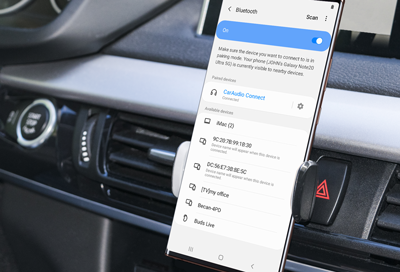
Open Bluetooth settings on your phone. Go to Settings → Bluetooth (on both iOS and Android). Toggle Bluetooth on and wait for the device list to populate.
Select your car's name. The stereo usually appears as something like Honda HFT, SYNC, Mercedes-Benz, or Audio. Tap it.
Confirm the PIN. Most factory systems use
0000or1234, but newer vehicles display a six-digit code on both the car screen and your phone. Verify the codes match and confirm on both devices.Accept permissions. Your phone will ask permission to sync contacts and access messages. Accept these if you want full hands-free functionality—declining limits the system to audio playback only.
Test the connection. Play a song and place a test call. If audio doesn't route tothe car speakers, check the stereo's source selector. Press the Source, Media, or Mode button and choose Bluetooth or Phone Audio. The pairing itself can succeed while the stereo still plays FM—the sound simply won't come through until you switch inputs.
If the stereo has multiple Bluetooth profiles, make sure media audio is enabled. On some vehicles, the system automatically connects for calls but requires you to manually activate "Audio Streaming" or "Media Playback" before music will play.
Practical Example: Pairing a Late-Model Toyota Camry
Toyota's Entune system in recent Camrys works like this:
- Press Home, then select Setup.
- Choose Bluetooth → Add New Device.
- The stereo begins searching and displays its name (usually Toyota or Entune).
- On your phone, open Bluetooth settings and tap that name.
- Confirm the matching six-digit PIN on both screens.
- Accept the phonebook and message sync prompts.
From start to finish, this takes about 90 seconds. Newer Entune versions also support Apple CarPlay and Android Auto, which use the same Bluetooth pairing as a fallback when you don't plug in a USB cable. For more on this, see our guide on how to connect iphone to car stereo.
Common Mistakes on Built-In Systems
- Starting the phone scan before the car is searching. The stereo's pairing window is short. Activate the car first, then open the phone's Bluetooth menu.
- The stereo doesn't appear on your phone. Either the car is already connected to another device, or it has reached its paired-device limit. Delete old phones from the car's memory and try again.
- Pairing succeeds, then disconnects after 10 seconds. Your phone may be switching between Wi-Fi and Bluetooth frequencies. Temporarily disable Wi-Fi on your phone and see if the connection stabilizes.
- Calls work but music doesn't. The stereo might only support the Hands-Free profile, not the A2DP audio-streaming profile. Check your owner's manual for "media playback" or "audio streaming" support.
Using a Bluetooth Adapter for Cars Without Bluetooth
If your car was built before Bluetooth became standard, or the factory system never included it, an adapter is the most cost-effective fix. You do not need to replace the stereo—you only need to give it an input it already understands.
Types of Bluetooth Adapters
| Adapter Type | Where It Plugs In | Audio Quality | Supports Calls | Typical Price |
|---|---|---|---|---|
| FM Transmitter | Cigarette lighter / 12V socket | Good, but depends on radio reception | Yes (with built-in mic) | $15–$40 |
| Aux-In Adapter | 3.5mm AUX jack | Excellent | Yes (with mic) | $20–$50 |
| USB Dongle | USB port | Good to excellent | Varies by model | $10–$30 |
| Cassette Adapter | Cassette deck | Moderate | No | $10–$25 |
How Each Adapter Works
FM transmitters broadcast your phone's audio over a short-range FM signal. You tune the car radio to a blank channel, and the transmitter sends your music and calls through that frequency. They are the easiest to install—just plug into the 12V socket and pair—but audio quality can suffer in cities with crowded radio bands. For more on this, see our guide on how to connect amplifier to car stereo.
Aux-in adapters plug into the stereo's 3.5mm headphone-style jack and convert the phone's Bluetooth signal into analog audio at the AUX input. They deliver noticeably better sound than FM transmitters because the signal never touches the radio tuner. Many also include a small microphone for hands-free calls.
USB Bluetooth dongles work if your stereo has a USB port that is not solely used for iPod control—some stereos only read flash drives and will ignore a Bluetooth dongle entirely. When they work, they often integrate with the stereo's controls, letting you skip tracks using the head unit.
Cassette adapters are a classic solution that still works if your car has a tape deck. The adapter physically inserts into the cassette player, and a Bluetooth receiver in the shell streams audio through the tape head. Sound quality is decent for spoken audio but limited for music.
Step-by-Step: Pairing a Bluetooth Adapter
- Choose the adapter that matches your stereo's input. If you have an AUX jack, prefer an aux-in adapter or FM transmitter. If you only have a 12V socket and FM radio, an FM transmitter is your only choice.
- Plug in the adapter and power it on. Most light up or beep when ready.
- Set your radio to the adapter's FM channel (if using an FM transmitter). Find a frequency with static but no actual station.
- Put the adapter in pairing mode. This usually means pressing the power button for five to ten seconds until a light flashes red and blue.
- Open your phone's Bluetooth settings and tap the adapter's name. It often appears as "BT-Speaker," "Car Audio," or a model number.
- Enter the PIN if asked. Many adapters use
0000or1234, though some newer models skip the PIN entirely. - Tune for best signal. If using an FM transmitter, adjust the frequency so the music sounds clear and free of static.
A common mistake: Buying an FM transmitter and leaving it on the default channel, which happens to be near your local NPR station. You can hear the radio bleeding through the music. Spend a minute before driving to find a completely silent frequency.
For best results, position an FM transmitter upright and away from metal objects in the cupholder. The antenna needs a clear line to the radio antenna, which is usually in the rear pillar or on the roof.
Installing an Aftermarket Bluetooth Stereo
If you want modern features like Apple CarPlay, Android Auto, or better built-in audio processing, upgrading the whole stereo is the right call. It is also the only option for cars with no AUX, no FM radio, and no cassette deck—rare, but not unheard of.
What You Need
- A double-DIN or single-DIN stereo that matches your dashboard's opening. Most cars from the 2000s use double-DIN, but a few use single-DIN with an adapter bracket.
- A wiring harness adapter specific to your car's make and model. This lets you connect the new stereo to the car's existing plugs without cutting factory wires.
- A dash kit to fill any gaps between the new stereo and the factory opening.
- Basic tools: screwdrivers, panel trim tools, and wire crimpers or solder.
Installation Steps at a Glance
- Disconnect the negative battery terminal before touching any wiring.
- Remove the dashboard trim panel. It usually pries off from the edges with a trim tool. Screws behind the trim hold the factory stereo in place.
- Slide out the factory stereo and unplug its harness connectors.
- Connect the wiring harness adapter to the new stereo's wires. Match colors: yellow for constant power, red for ignition power, black for ground, and the speaker wire pairs. If you solder, use heat-shrink tubing to keep connections secure.
- Connect the other end of the harness to the car's factory plug.
- Slide the new stereo in until it clicks, then reinstall the trim panel.
- Reconnect the battery and power on the stereo. Go into Bluetooth settings and pair your phone.
If the wires do not match your car's factory harness, consult the Crutchfield wiring guides or a professional installer before proceeding. A mistake here can blow fuses or damage the stereo.
Pros and Cons of a Full Upgrade
Pros: Cleaner integration, physical buttons for track selection, better microphones for calls, and app support without touching your phone. Many units also improve audio equalization and add subwoofer controls.
Cons: Cost is the big drawback—$150 to $700 for the stereo plus $50 to $200 for professional installation if you do not DIY. And if your dashboard is non-standard, you may need special mounting adapters that are harder to find.
Troubleshooting Bluetooth Connection Problems
Even after successful pairing, Bluetooth often drops or refuses to reconnect. Work through these fixes in order—start with the least destructive.
Quick-Fix Checklist
| Problem | Likely Cause | Easiest Fix |
|---|---|---|
| Phone says "connected" but no sound | Wrong audio source selected on the stereo | Press the Source/Media button and choose Bluetooth |
| Stereo does not find your phone | Stereo is in pairing mode but phone's Bluetooth discovery is off | Put the phone in "discoverable" mode and scan again |
| Pairing fails with wrong PIN | Car uses a dynamic PIN displayed on its screen | Look at the car's display for a number, not a printed code |
| Audio cuts out while driving | Wi-Fi interference or too many paired devices | Turn off Wi-Fi on your phone; delete old phone profiles |
| Calls echo or sound muffled | Microphone placement or noise cancellation conflict | Sit closer to the mic, or turn off "noise suppression" on the head unit |
| Bluetooth won't turn on at all | Phone is in low-power mode or a software glitch | Restart the phone completely, not just toggle Bluetooth |
Deeper Fixes for Persistent Problems
1. Delete old paired devices from the car. Most factory stereos allow only five to ten phones. Once you hit that limit, new phones either refuse to pair or constantly kick each other off. Go into the stereo's Bluetooth menu and remove any devices you no longer use.
2. Perform a stereo "soft reset." Turn off the car and remove the key for five minutes. For aftermarket stereos, look for a small reset button on the faceplate—press it with a toothpick.
3. Reboot your phone completely. A simple toggling of Bluetooth does not clear a hung Bluetooth stack. Power the phone off and on.
4. Check for phone software updates. Bluetooth compatibility issues are frequently fixed in OS updates. Even if your phone claims it is up to date, the car's own software may need a dealer update—check the manufacturer's owner portal for your model.
5. Test with a second phone. This tells you whether the problem lives in the car or the phone. If a different phone pairs instantly, the issue is your phone's Bluetooth cache. On Android, go to Settings → Apps → Bluetooth → Clear Storage; on iPhone, "Reset Network Settings" is more aggressive but usually works.
If you're dealing with a stereo that shows text in a language you don't understand, many aftermarket units let you change it from the settings menu. Look for a gear icon or a menu labeled with a flag/globe symbol; a full walkthrough is available in our guide on adjusting the display language.
Safety and Privacy Tips
Bluetooth is more than a convenience—it is a hands-free tool that can reduce distraction. Use it properly.
- Set up pairing before you drive. Never pair a new phone while moving. Even if the stereo allows it, your focus should stay on the road.
- Use voice commands to start calls and music. Say the contact name or playlist title rather than scrolling through the phone.
- Review your privacy settings. When the stereo asks to access your contacts and text messages, consider whether you want your call log displayed on the dashboard. GPS trackers and rental car systems have been known to store this data.
- Forget the stereo before selling the car. A buyer who connects their phone later may be able to access your previous contacts and messages left in the car's memory. On your phone, go to the stereo's Bluetooth listing and tap "Forget This Device."
- Don't leave your phone unlocked on the passenger seat. A paired car system can notify you of notifications while you drive; leave your phone in a mount or bag if you don't want those notifications projecting on the screen.
For more on hands-free driving laws and safe phone use behind the wheel, consult your state's department of motor vehicles guidelines.
Advanced Features Worth Knowing
Bluetooth in cars has matured far beyond simple music streaming. Here are the capabilities that most owners overlook.
Multipoint Pairing
Some stereos allow two phones to be connected simultaneously. This is useful for a family car where you and your partner both want to take calls, or when your work phone and personal phone are both in the car. Check your stereo's manual for "multipoint" or "secondary phone" support. If it doesn't have it, you'll see a "second device" option greyed out.
Bluetooth Audio Codecs
The sound quality of Bluetooth depends on how the audio is compressed. The baseline codec, SBC, is supported everywhere but can sound flat. Newer stereos add AAC (better for iPhones) or aptX / aptX HD (better for Android and select Bluetooth adapters) for noticeably clearer audio. To see which codec your phone is using, Android users can enable Developer Options and check "Bluetooth Audio Codec" under the media section. iOS does not surface this directly, but you can infer it by the quality you hear.
Automatic Reconnection
After the first pairing, most stereos will automatically reconnect with your phone within a few seconds of starting the car. If you find yourself constantly re-pairing, the problem is usually that the phone is configured to connect to a different device (like a smartwatch) that switches the profile away from the car. Disable automatic connection for any device you rarely use.
How to Choose the Best Bluetooth Option for Your Car
Use this table to decide based on your specific needs.
| Your Priority | Best Option | Estimated Cost | Setup Time |
|---|---|---|---|
| Simplest possible solution | FM transmitter | $15–$40 | 5 minutes |
| Best sound without replacing the stereo | Aux-in adapter | $20–$50 | 10 minutes |
| Full control with app support | Aftermarket stereo with CarPlay/Android Auto | $150–$700 | 1–2 hours |
| Hands-free calling with minimal gear | Built-in Bluetooth or FM transmitter with mic | $0–$40 | 5 minutes |
If you drive short distances and mainly want podcasts and navigation prompts, a $20 FM transmitter is perfectly adequate. If you spend an hour a day commuting and value crisp audio, invest in an aux-in adapter or a new stereo. The line is simple: match the input your stereo already has.
Credit: www.samsung.com
Expert Tips for a Smooth Bluetooth Experience
After years of working with factory and aftermarket audio systems, a few habits consistently prevent the most frustrating issues.
- Keep your stereo's firmware updated. Aftermarket brands like Pioneer, Kenwood, and Sony release firmware updates that fix Bluetooth dropouts. Check the manufacturer's support page every few months.
- Pair your phone while the car is completely off, then turn the ignition to ACC. Some stereos initialize Bluetooth services more reliably when they power up before you touch any buttons.
- Limit the number of paired devices. Do not leave a stack of old phones on the stereo's memory. Every extra profile increases the time the head unit spends scanning.
- Place aftermarket adapter microphones near the steering wheel. The built-in mic on an FM transmitter hidden in a cupholder will pick up road noise. Clip the microphone to your sun visor for significantly better call quality.
- Test before you accelerate. A 15-second check of audio and call quality while still parked saves you from fumbling with the controls at a red light.

Credit: www.youtube.com
Frequently Asked Questions
How do I know if my car stereo has Bluetooth?
Look for the Bluetooth symbol on the faceplate, or press the "Source" button to see if "Bluetooth" appears as an option. Many manufacturers also list Bluetooth as a standard feature in the owner's manual's spec section. If your stereo only has an AUX input or USB port, it does not have built-in Bluetooth.
Can I add Bluetooth to any car?
Yes, as long as the car has at least one of three things: an AUX jack, a 12V cigarette lighter, or a cassette deck. An FM transmitter works with the 12V socket; an aux-in adapter handles the AUX jack; a cassette adapter covers the tape deck. For cars with none of these, an aftermarket stereo is the only option.
Why won't my phone connect to my car's Bluetooth?
The most common causes are: the stereo is not in pairing mode, the paired-device limit is reached, the phone's Bluetooth cache is corrupted, or the wrong PIN is being entered. Work through the troubleshooting checklist above before replacing any hardware.
Is Bluetooth audio quality as good as AUX or USB?
A modern Bluetooth connection using aptX or AAC is indistinguishable from a wired connection for most listeners, especially in a moving car where road noise masks subtle detail. Cheap FM transmitters, however, degrade quality noticeably. If you have an AUX jack, use an aux-in adapter for the best wireless compromise.
How do I remove my phone from my car's Bluetooth?
On the stereo, go to Bluetooth settings, find the list of paired devices, select your phone, and choose "Delete" or "Forget." On the phone, go to Settings → Bluetooth, find the car's name, tap the "i" icon (iOS) or the gear icon (Android), and select "Forget This Device." Do both to ensure a clean slate.
Conclusion
Connecting Bluetooth to your car stereo does not require technical skill or expensive tools—it requires the right pairing sequence and a simple understanding of what your stereo supports. Start with the 30-second pre-check, follow the steps for your specific setup, and use the troubleshooting fixes only if something goes off track.
For most drivers, the resolution is one of three things: switch the stereo to pairing mode before you scan, switch the audio source to Bluetooth after pairing, or delete old devices that are hogging the memory. That covers the overwhelming majority of connection problems.
Your next step: Pick the option that matches your car right now. If your stereo has built-in Bluetooth, go to the car, enter pairing mode, and follow the six-step process from the first section. If it doesn't, order an FM transmitter or aux-in adapter that fits your input, and have it paired before your next drive. You'll never hunt for another cable again—and your phone will connect automatically every time you get in the car.

Leave a Reply